
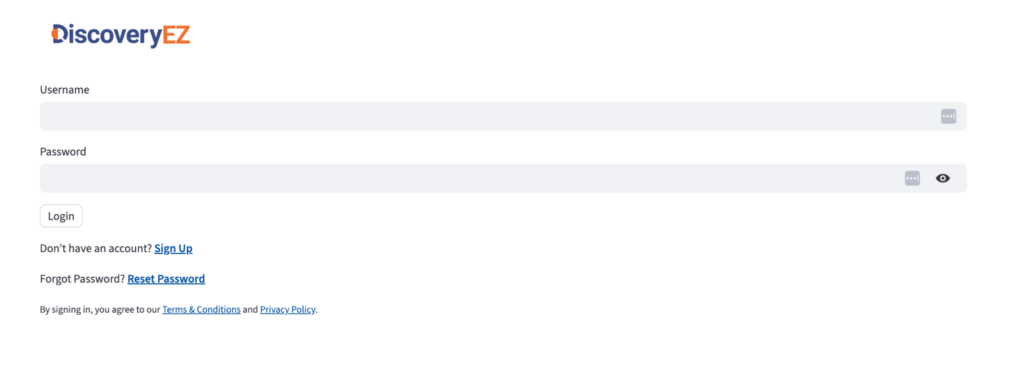
- Log in to DiscoveryEZ
- Open https://ai.discoveryez.com/
- Enter your Username and password.
- Click Log in.
- Open https://ai.discoveryez.com/
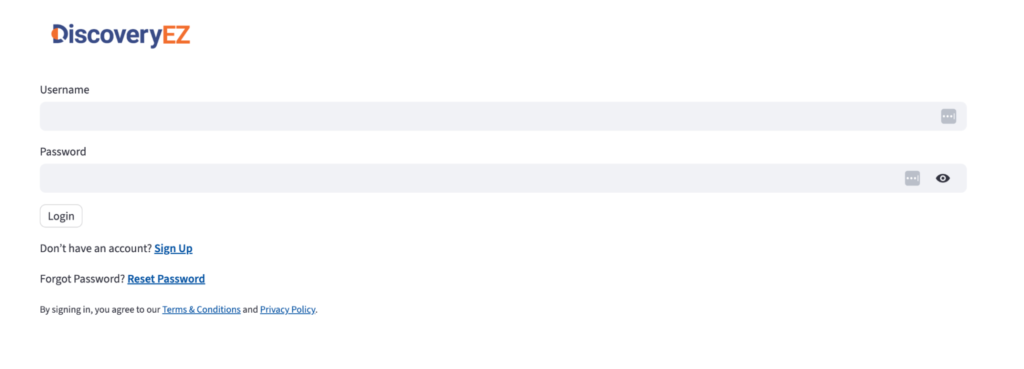
- Click “Connect to Dropbox”
- On the main screen, find Connect to Dropbox.
- Click on it.
- On the main screen, find Connect to Dropbox.
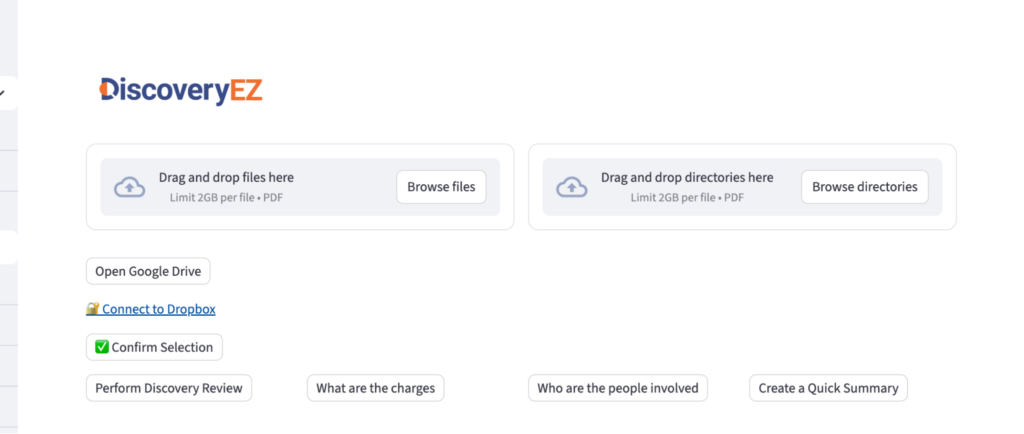
- Click “Continue” on the warning screen
- A message will appear saying “Before you connect this app…”
- This is normal.
- Click Continue.
- A message will appear saying “Before you connect this app…”
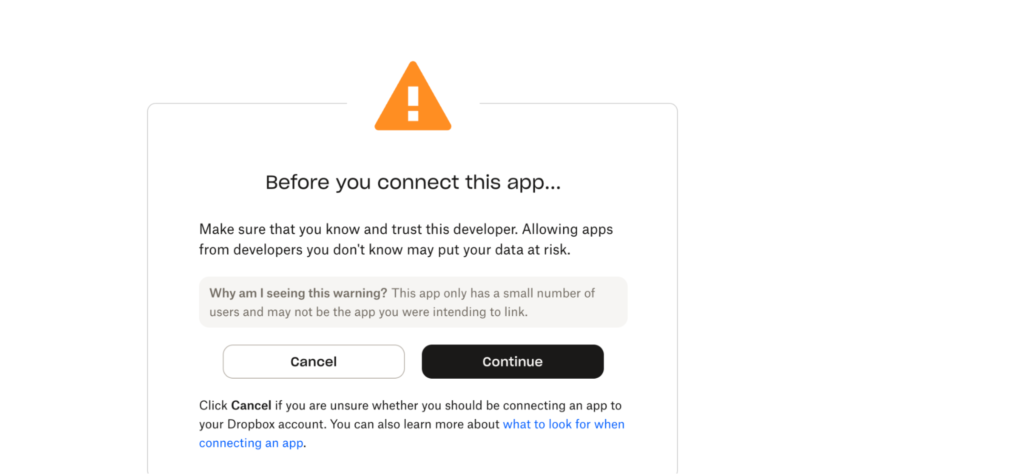
- Click “Allow” to give permission
- You will see a screen asking to allow DiscoveryEZ to access Dropbox.
- Click Allow.
- You will see a screen asking to allow DiscoveryEZ to access Dropbox.
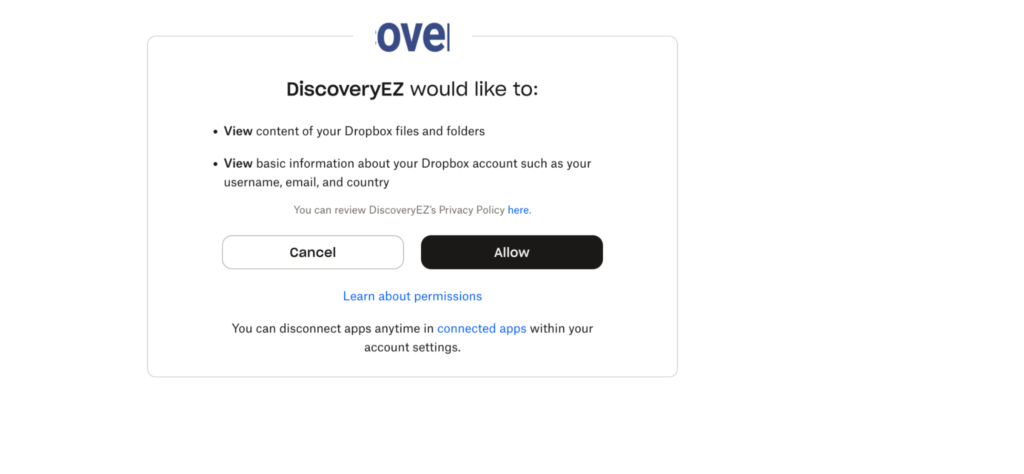
- Log in to DiscoveryEZ
- DiscoveryEZ may ask you to log in again.
- Enter your DiscoveryEZ Username and password.
- Click Log in.
- DiscoveryEZ may ask you to log in again.
- Check that Dropbox is connected
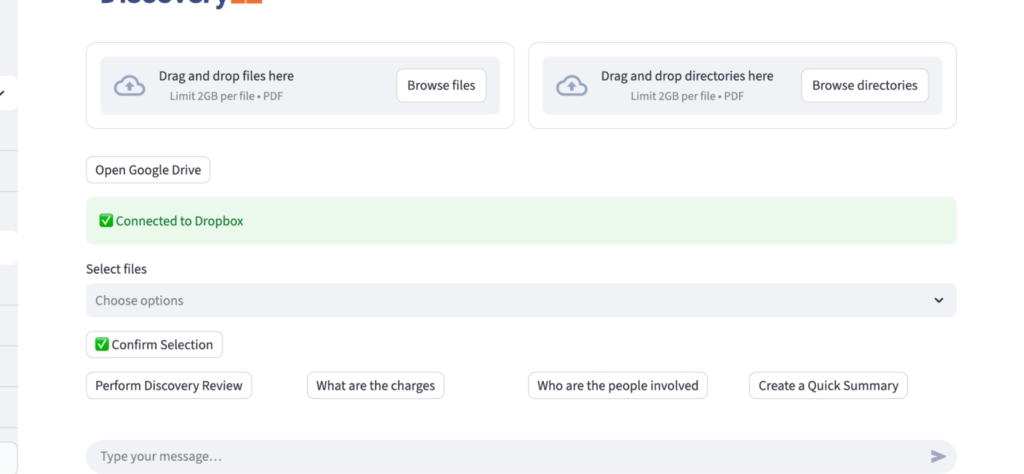
- You will see a green message that says:
✅ Connected to Dropbox - The green check mark means it worked.
- You will see a green message that says:
- Choose your files
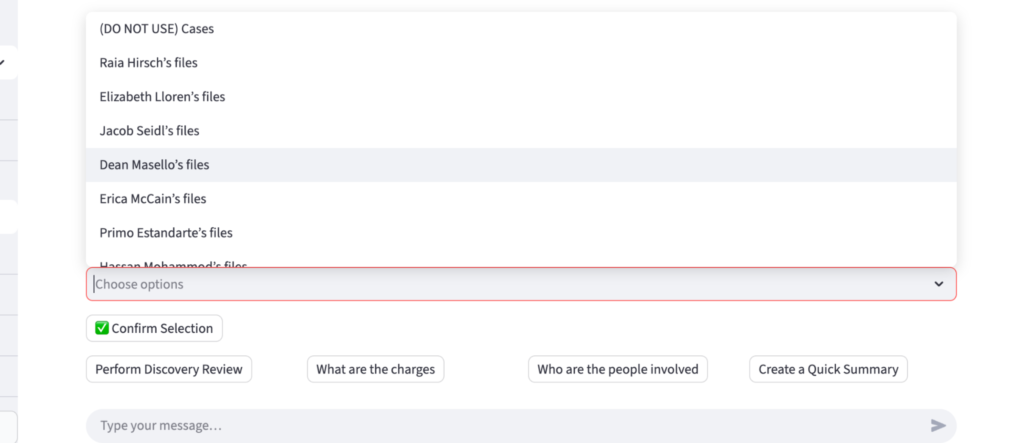
- Click Choose options.
- Select the folder or files you want to use.
- Click Choose options.
- Confirm your selection
- Click Confirm Selection ✅
- Your files are now ready in DiscoveryEZ.
- Click Confirm Selection ✅
✨ You’re done!
Dropbox is now connected, and your files can be used in DiscoveryEZ.