
New to DiscoveryEZ? This guide walks you through generating a fast first-pass Discovery Review so you can move from evidence to clarity, faster.
STEP 1
Open a new case
- Sign in to DiscoveryEZ at https://ai.discoveryez.com/.
- Click + New Case in the sidebar.
- You’ll land on the New case screen, ready to receive your documents.
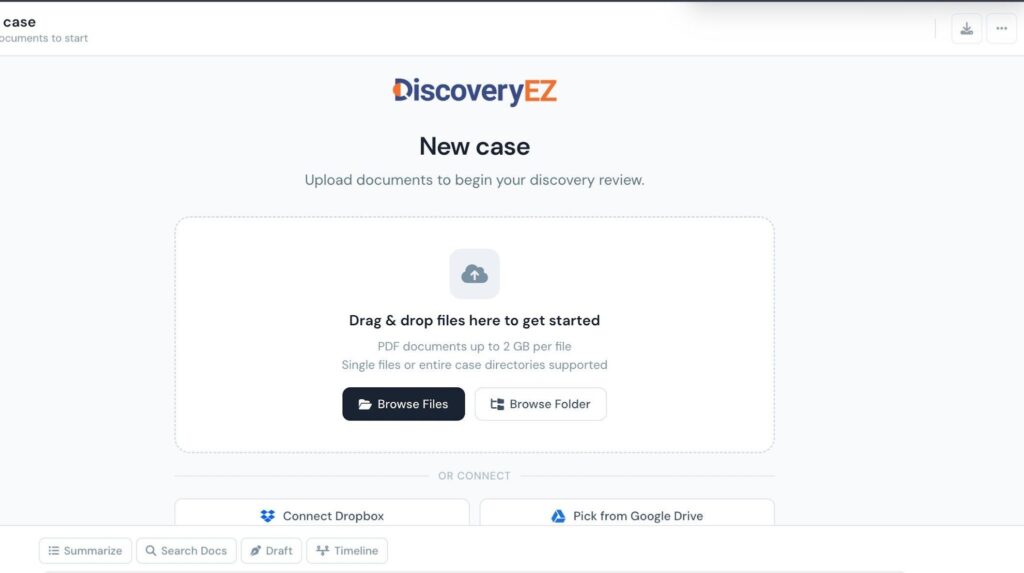
The New case screen — your starting point.
STEP 2
Upload your case documents
You can add PDFs in any of three ways. Pick whichever fits your workflow.
Option A — Drag and drop, or browse
- Open the folder on your computer containing your PDFs.
- Drag the files onto “Drag & drop files here to get started”.
- Or click Browse Files to pick specific PDFs, or Browse Folder to import an entire case directory.
Option B — Connect Dropbox
- Under OR CONNECT, click Connect Dropbox.
- On the Link your Dropbox dialog, click Continue to Dropbox and authorize access.
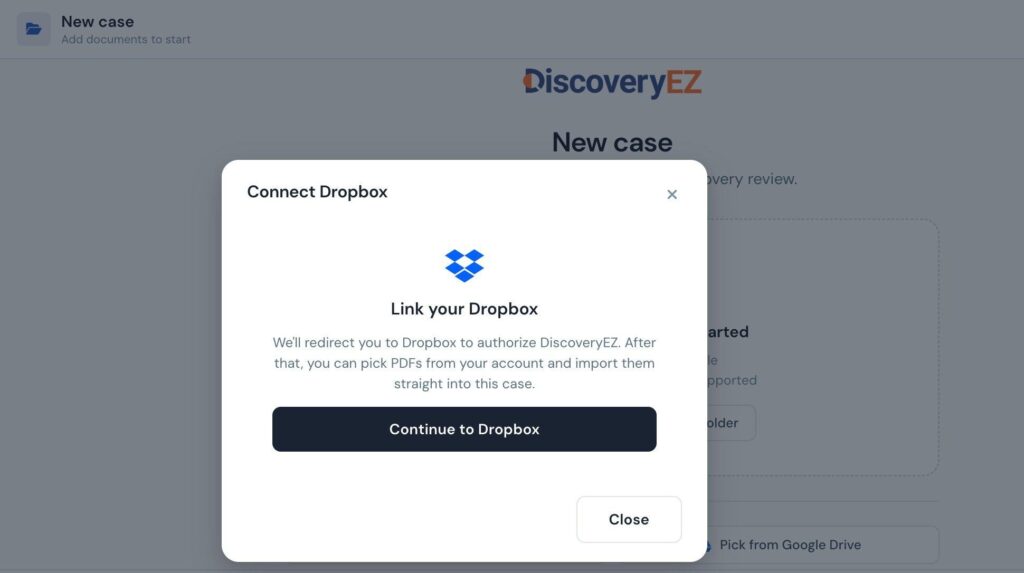
Authorize DiscoveryEZ to read PDFs from your Dropbox.
- Browse to the folder you want, tick the PDFs to import, and click Import N file(s).
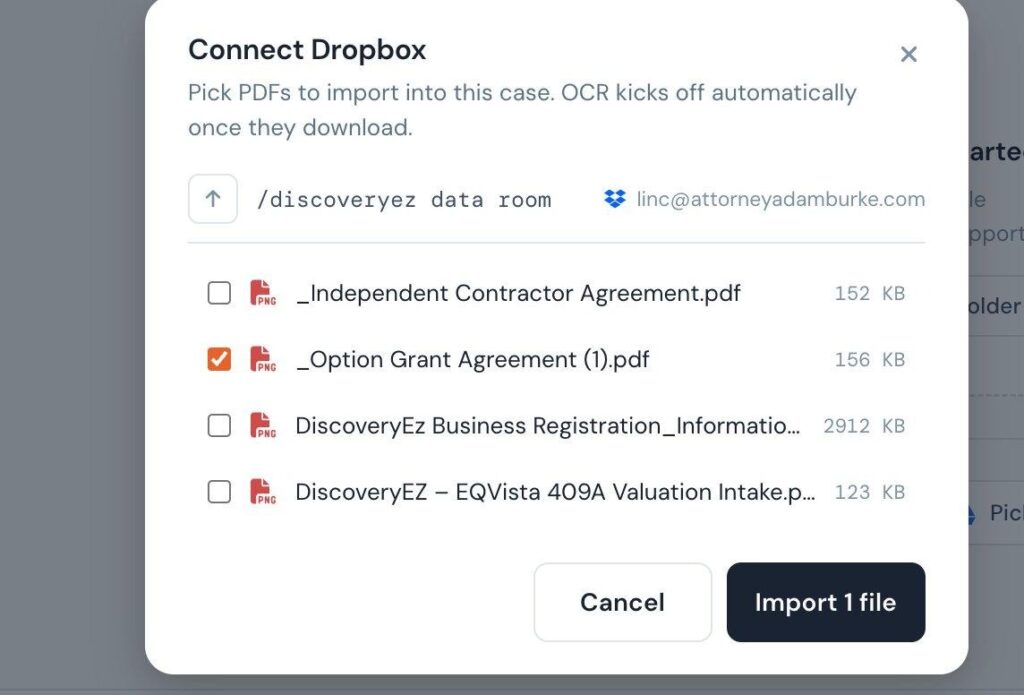
The Import button updates with the count of files you select.
Option C — Pick from Google Drive
- Click Pick from Google Drive and authorize the connection.
- Choose your PDFs in the Google Drive picker.
- Click Select to import them into your case.
STEP 3
Wait while DiscoveryEZ runs OCR
DiscoveryEZ uploads your PDFs and queues OCR automatically. You don’t need to do anything — just watch the progress message.
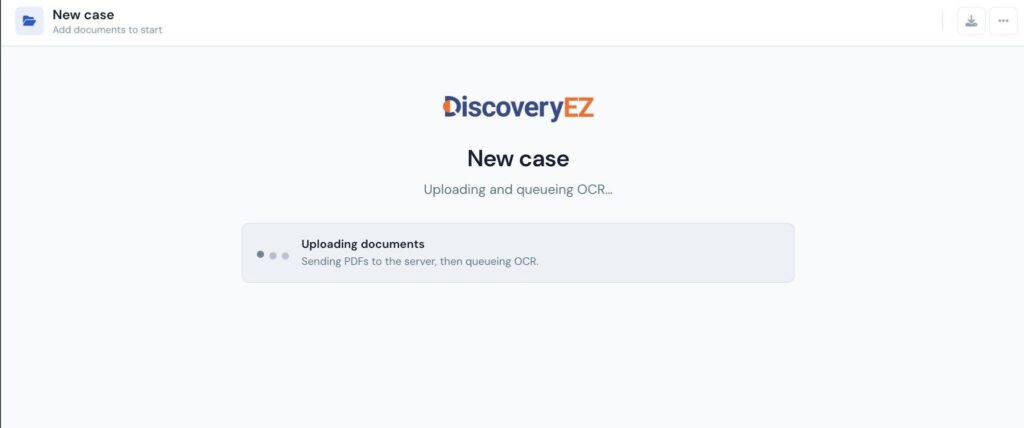
Uploading and queueing OCR — typically a few seconds per document.
STEP 4
Your case is ready
- Untitled case (rename it any time) now shows 1 document processed — or however many you uploaded.
- Below the document list, you’ll see quick-action buttons: Discovery Review, Key Charges, Parties Involved, Quick Summary, and Key Dates.
- Use + Files or Folder to add more documents at any time.
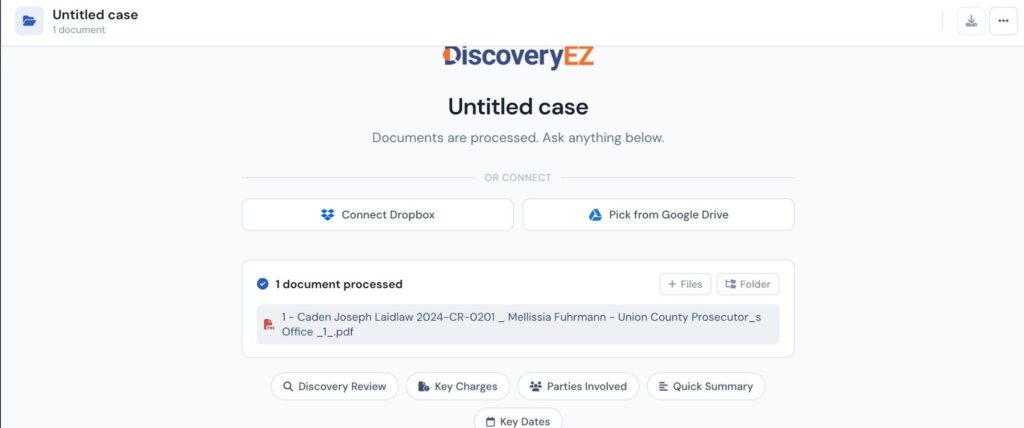
Once processed, your case unlocks the full set of AI quick actions.
STEP 5
Run the Discovery Review
- Click the Discovery Review button (it highlights in dark navy when selected).
- DiscoveryEZ reads all your case documents and drafts a structured AI report.
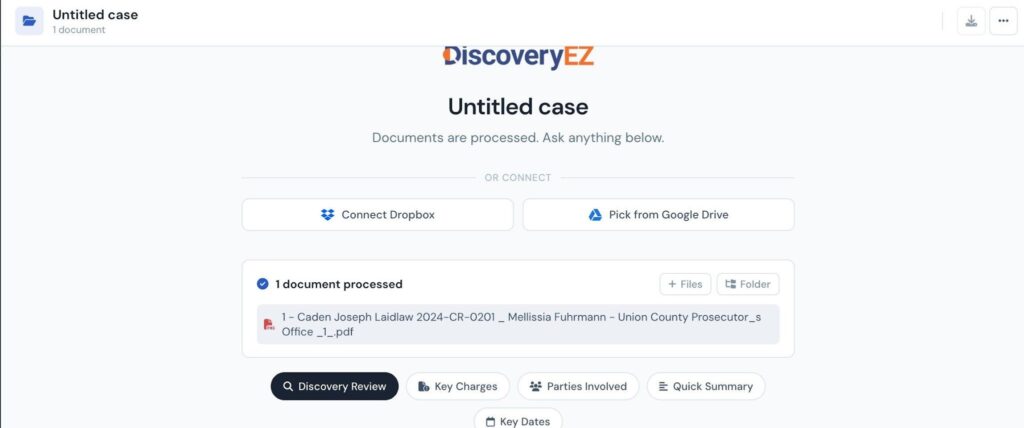
Discovery Review is the headline action — a full first-pass report on your case.
Other quick actions you can run:
- Key Charges — surface every charge and statute referenced.
- Parties Involved — list defendants, attorneys, judges, and witnesses.
- Quick Summary — generate a one-paragraph executive summary.
- Key Dates — build a timeline of filings, hearings, and deadlines.
STEP 6
Read your AI-generated review
Within seconds, DiscoveryEZ returns a structured Discovery Review with the case overview, materials provided under Criminal Rule 16, and citations back to the source documents.
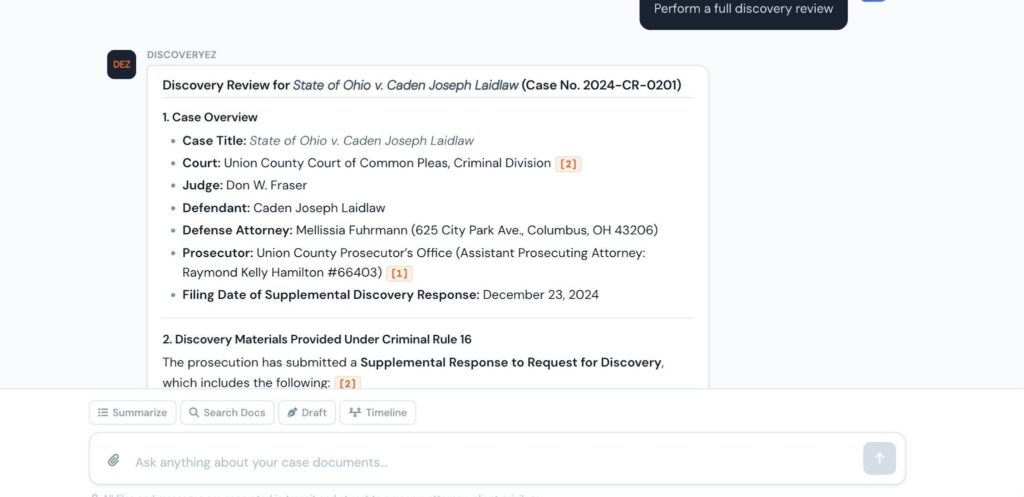
Citations like [1] and [2] link straight back to the underlying PDFs.
Every claim is grounded in your uploaded documents. Use the chat box at the bottom to ask follow-up questions — for example, “What are the key dates?” or “Summarize the prosecution’s position.”
✨ YOU’RE DONE!
You’ve gone from raw PDFs to a structured discovery review in minutes. Keep asking questions in the chat to dig deeper.