
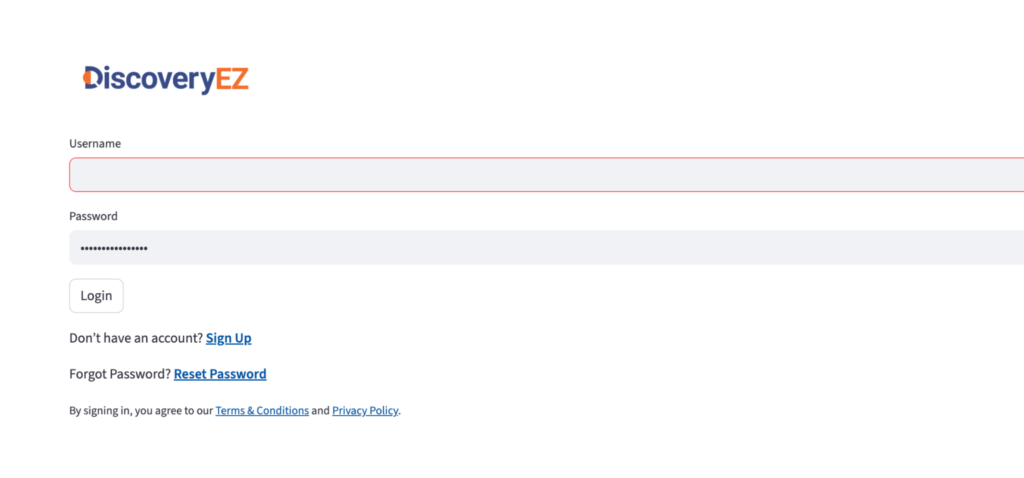
Step 1: Log In
- Open DiscoveryEZ.
- Enter your email and password.
- Click Login.
Step 2: Upload Your Files
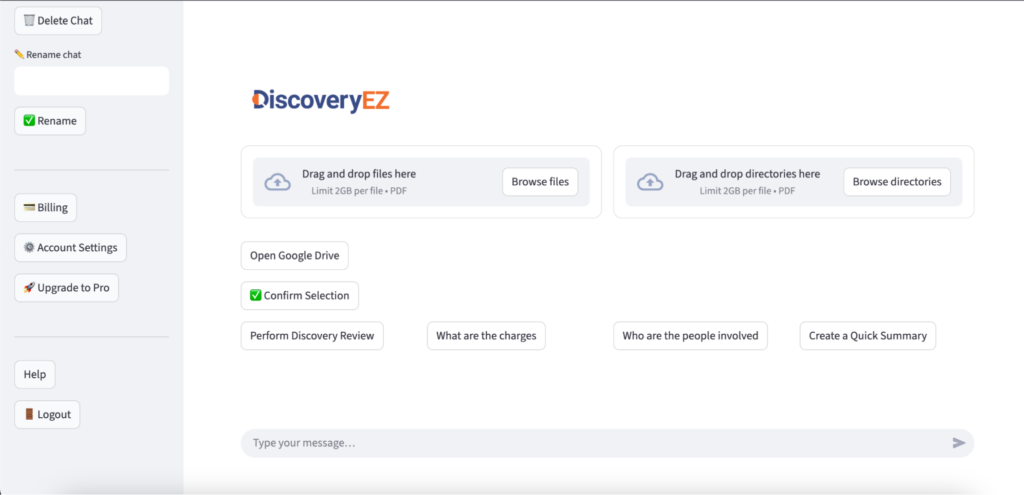
You can add your PDFs in any of these ways:
Option A – Drag and Drop
- Open the folder on your computer.
- Drag your PDF files.
- Drop them on “Drag and drop files here”.
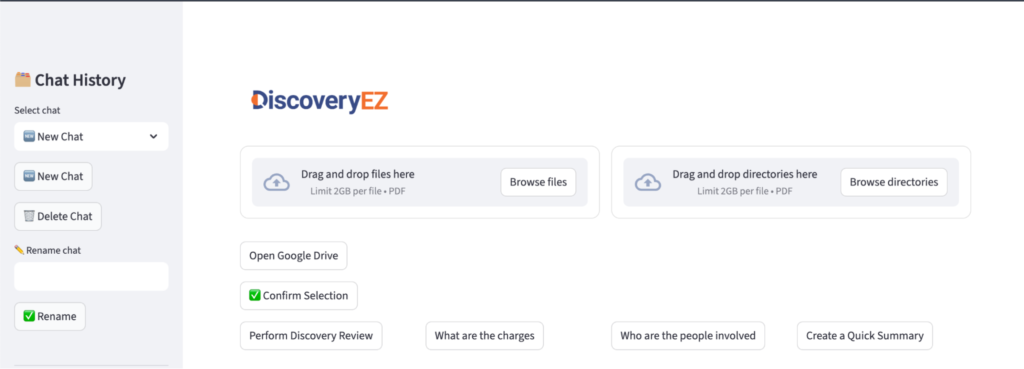
Option B – Browse from Computer
- Click “Browse files” to pick files,
or “Browse directories” to pick a whole folder. - Select what you want.
- Click Open.
Option C – From Google Drive
- Click “Open Google Drive.”
- Choose your files.
- Click Select.
Step 3: Confirm Your Selection
- Check that all the files you want are listed.
- Click the green ✅ “Confirm Selection” button.
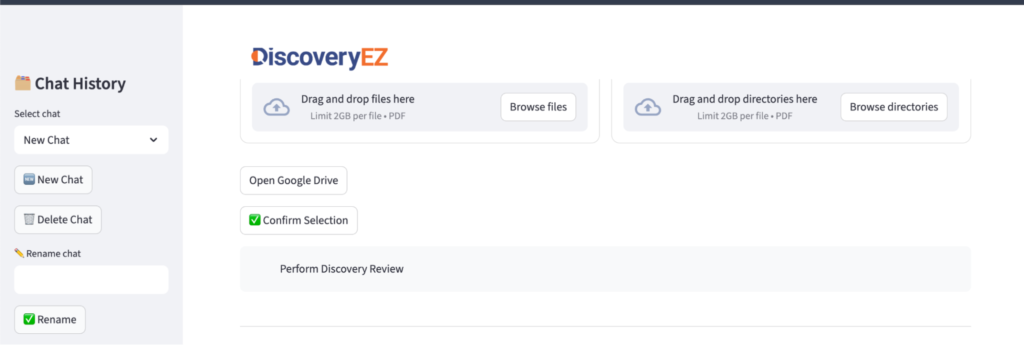
Step 4: Run the Discovery Review
- Click “Perform Discovery Review.”
- DiscoveryEZ will read all your files and create an AI report.

You can also use:
- “What are the charges”
- “Who are the people involved”
- “Create a Quick Summary”
Step 5: Watch the Tutorial (Optional)
For a visual walkthrough, you can also watch: https://youtu.be/U57b9AIuS30