
Give every case chat a clear name so you can find it again later. Renaming takes seconds and works on any chat in your sidebar.
STEP 1
Find the chat in your sidebar
- Open DiscoveryEZ.
- In the left sidebar under ACTIVE CASES, locate the chat you want to rename — for example, “Untitled Chat”.
- Hover over the chat row to reveal its action menu.
STEP 2
Open the chat menu
- Click the three-dot menu (⋮) on the right of the chat name.
- A small menu appears with three options: Rename, Export chat, and Delete.
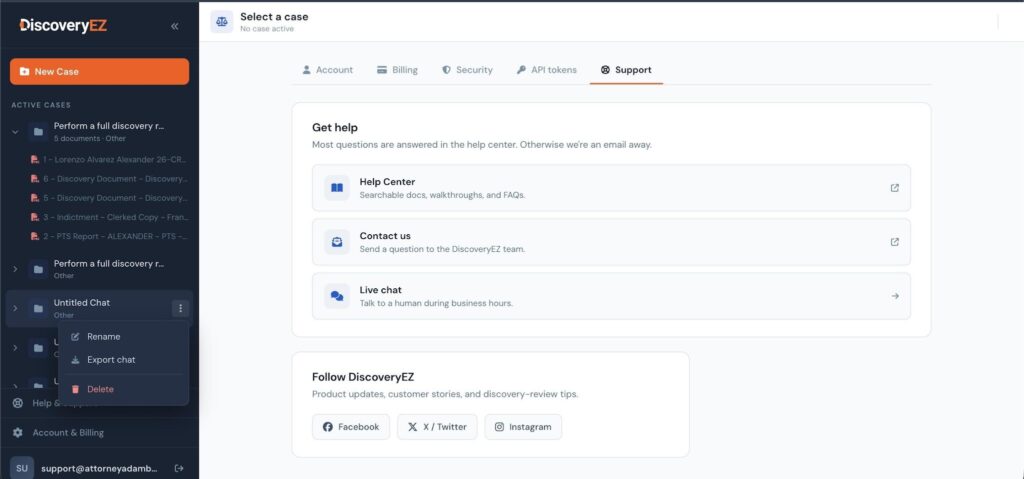
The action menu opens beside the selected chat in the sidebar.
STEP 3
Click Rename and enter a new name
- Click Rename — the chat name turns into an editable text field.
- Type the new name (e.g. “Smith v. Jones — pretrial review”).
- Press Enter to save, or click anywhere outside the field. Press Esc to cancel without saving.
Naming tip: Use a format that helps future-you scan the sidebar quickly — something like “Case number — short description” works well across long lists.
✨ YOU’RE DONE!
Your chat is renamed. The new name appears immediately in the sidebar and at the top of the chat.
Other things you can do from the same menu
- Export chat — download the full conversation for your records or to share with a colleague.
Delete — permanently remove the chat. This action cannot be undone, so double-check before confirming.