
Need more processing capacity? Buy a one-time token pack any time — tokens never expire and stack on top of your plan.
STEP 1
Open Account & Billing
- Sign in to DiscoveryEZ.
- In the bottom-left sidebar, click Account & Billing.
- Click the Billing tab at the top of the Settings page.
STEP 2
Choose a token pack
- Scroll down to the Buy more tokens section.
- Pick the pack that fits your needs:
- 1M tokens for $25 — great for small top-ups
- 5M tokens for $63
- 10M tokens for $125
- 20M tokens for $250 — best value per token
- Click Buy next to the pack you want. A secure Stripe checkout opens in a new tab.
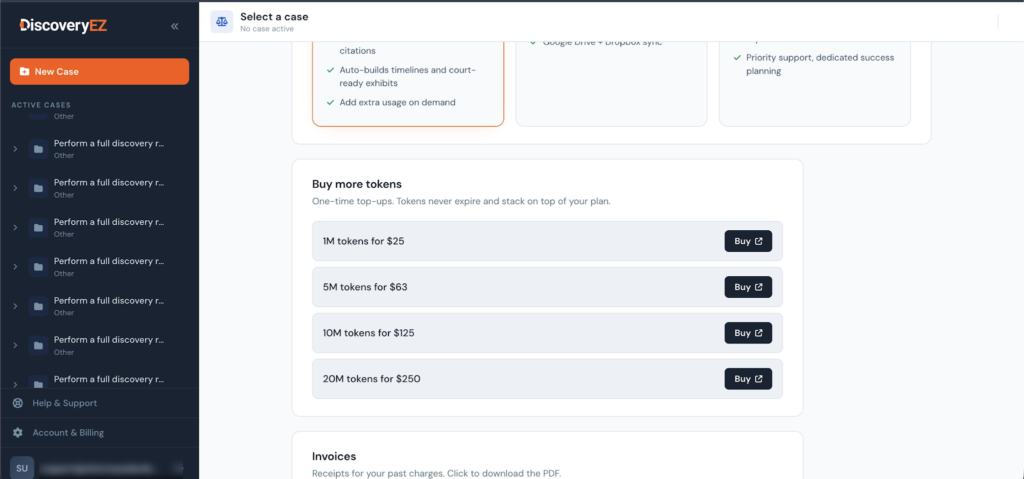
Token packs never expire and stack on top of your current plan.
Tip: Pricing scales — the larger packs cost less per token. If you regularly hit your plan limit, buying a bigger pack is more economical than several small ones.
STEP 3
Confirm your contact info (or skip Stripe Link)
If you’ve used Stripe Link before, you may see a “Confirm it’s you” screen asking for a 6-digit code emailed to you. Two options:
- Enter the code if you want to use the card stored in your Link account — fastest path.
- Click “Pay without Link” to skip and enter your payment details fresh.
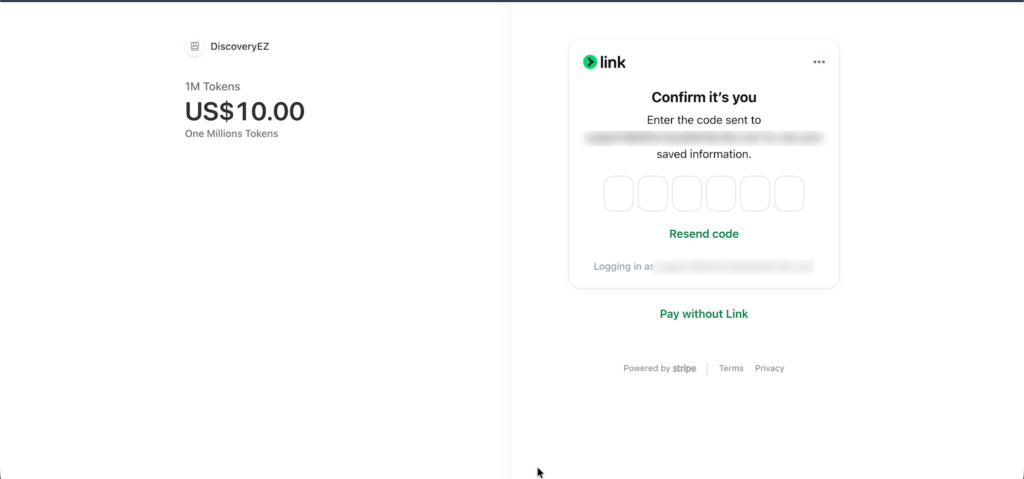
You only see this screen if you previously saved a card with Stripe Link.
STEP 4
Choose a payment method and pay
- You’ll see the order summary on the left (e.g. 1M Tokens — US$10.00).
- Pick a payment method on the right:
- Quick pay — use a saved card via Link or Amazon Pay.
- Card — enter Visa, Mastercard, Amex, or JCB details.
- Cash App Pay — pay with your Cash App balance.
- Click the blue Pay button to complete the purchase.
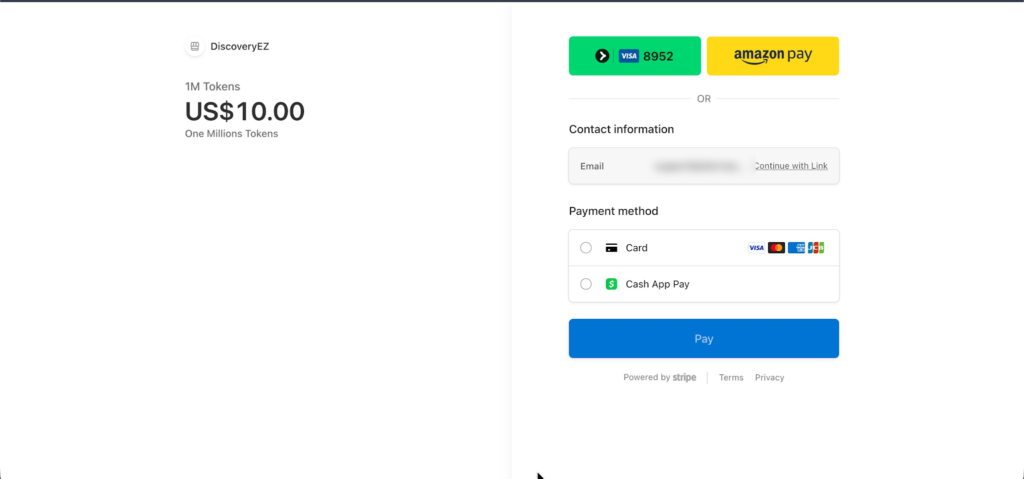
All payments are processed securely by Stripe, DiscoveryEZ’s billing partner.
✨ YOU’RE DONE!
Your tokens land in your account within seconds. Close the Stripe tab and head back to DiscoveryEZ — your usage limit has been topped up.
Need a receipt?
Every purchase generates a PDF invoice. Find it under Account & Billing › Billing › Invoices — click any row to download. Stripe also emails you a confirmation right after payment.