
Lost track of your password or just want to rotate it for security? Update it in seconds from the Account & Billing area.
STEP 1
Open Account & Billing
- Sign in to DiscoveryEZ at https://ai.discoveryez.com/.
- In the bottom-left sidebar, click Account & Billing.
- The Settings page opens, showing your account, billing, security, and support options.
STEP 2
Switch to the Security tab
Across the top of the Settings page you’ll see five tabs:
- Account — your profile and personal details
- Billing — payment methods and invoices
- Security — password and sign-in protection
- API tokens — for developer integrations
- Support — contact the DiscoveryEZ team
Click Security. The Change password form appears.
STEP 3
Fill in the Change password form
You’ll see three fields, all required:
- Current password — type the password you use today.
- New password — choose a strong, unique password. Minimum 8 characters.
- Confirm new password — re-type the new password exactly to confirm it matches.
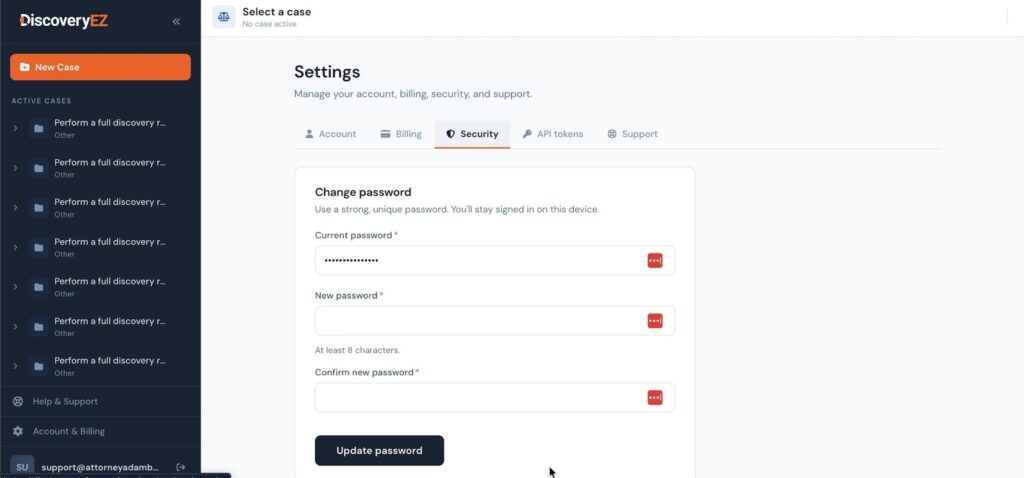
The Change password form on the Security tab.
Tip: Use a passphrase of 12+ characters mixing letters, numbers, and symbols. Avoid reusing passwords from other sites. A password manager makes this effortless.
STEP 4
Click Update password
- Click the dark Update password button at the bottom of the form.
- You’ll stay signed in on this device — no need to log back in.
- Other devices may be signed out and prompted for the new password the next time you use them.
✨ YOU’RE DONE!
Your password has been updated. Store it somewhere safe — a password manager is the easiest way.
Can’t sign in to reset it from inside the app?
Use the “Forgot password?” link on the sign-in screen. DiscoveryEZ will email you a secure reset link so you can choose a new password without signing in.