
Go to the Login Page
- Open the DiscoveryEZ website.
- Click on the “Login” button at the top right corner of the home page.

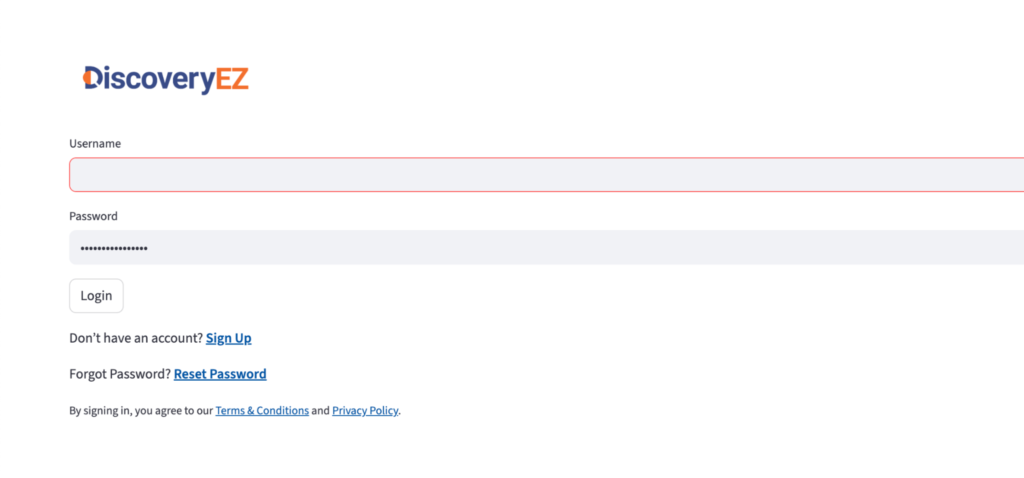
Click “Reset Your Password”
- On the login page, you will see “Reset your password” under the email and password boxes.
- Click on “Reset your password.”
Enter Your Registered Email
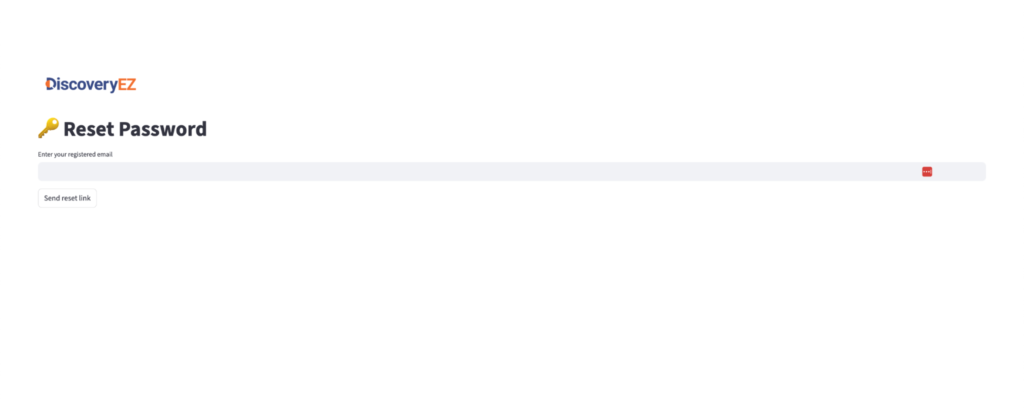
- You will be redirected to a new page.
- Type the email address you used to register with DiscoveryEZ.
- Click “Send reset link”
Create a New Password
- Click on the reset link in the email.
- You will be taken to a page where you can set a new password.
- Enter your new strong password twice (to confirm).
- Example of a strong password: at least 8 characters, with letters, numbers, and a symbol.

Log In With Your New Password
- After saving your new password, you will be redirected back to the login page.
- Enter your email address and your new password.
- Click “Login” to access your account.
If you still can’t log in after this, contact your teacher or the DiscoveryEZ support team for help.