How to Change Your Password
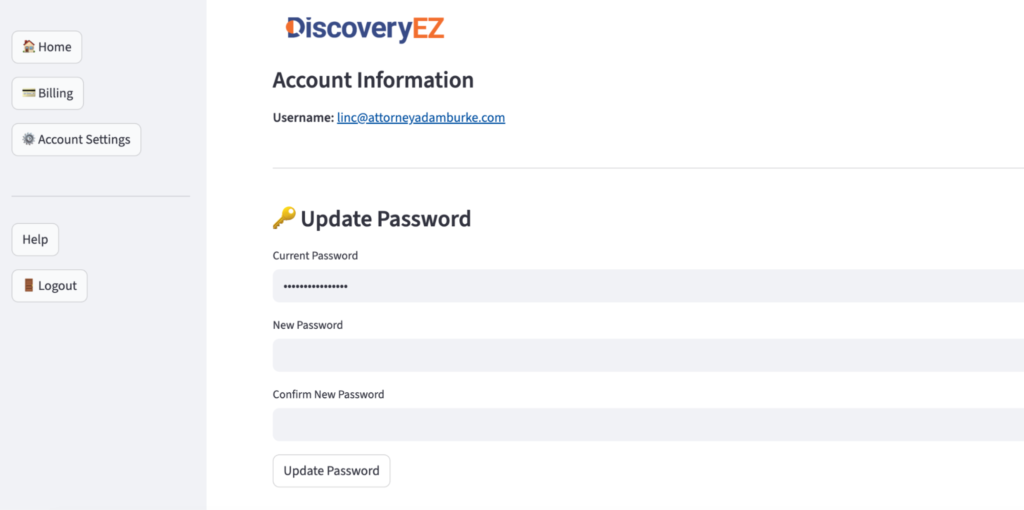
1. Go to you Account Settings
- Log in to your DiscoveryEZ account.
- On the left side, click “Account Settings”.
2. Open the “Update Password” section
- Scroll to the section titled “Update Password” (with the key icon).
3. Enter your current password
- In the box labeled “Current Password”, type your existing password.
3. Create a new password
- In the “New Password” box, type your new password.
- Choose a strong password (mix of letters, numbers, and symbols).
4. Confirm your new password
- In the “Confirm New Password” box, type the same new password again.
5. Save your new password
- Click the “Update Password” button.
- Your password will be changed, and next time you log in, use your new password.